
|
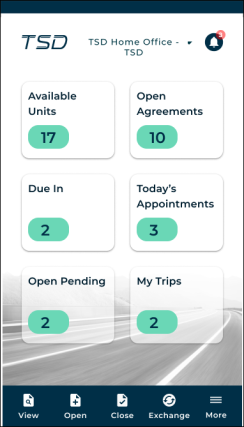
On the 'Home' screen of the mobile app, you can view live statistics, which also function as a shortcut to access records, and use the Main Menu to open agreements, manage fleet, view settings, and more.
Explore the Home Screen
Dashboard
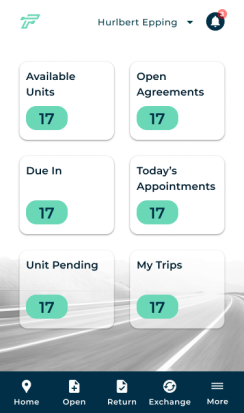
Right on the 'Home' screen is a Dashboard with activity statistics and direct access to records for your current location.
Tap a card to view a list of applicable records, and take action from there.
|
Available Units
|
Units with a status of Ready that are available to be used. Tap to view a list, then select a unit to begin the open agreement process. |
|
Open Agreements
|
Agreements with a status of Open. Tap to view a list, then select an agreement to view, exchange, or close. |
|
Due In
|
Units on open agreements due to be returned, based on their expected Return Dates. Tap to view a list, then select an agreement to view or close. |
|
Today's Appointments
|
Pending booked appointments scheduled for checkout today. Tap to view a list, then select an appointment to open into an agreement.
Records are tagged by status (e.g., Booked) and type (e.g., Loaner), as well as Appointment Number, Checkout Date, Phone, and, if applicable, Origin (if booked through a web scheduler partner or website). |
|
Open Pending
|
Unit Pending agreements that are awaiting unit assignment, and Inspection Pending agreements that are awaiting the unit inspection. |
|
My Trips
|
Trips on which you are assigned as the driver. Tap to view a list, and start a trip.
For locations with TSD's Delivery and Collection. See "Delivery and Collection with TSD" to learn more. |


Main Menu

The buttons on the bottom of the 'Home' screen give you quick access to:
|
|
View an open agreement, whether that be to edit its information, exchange a unit, or close it. See "View an Agreement (Mobile App)". |
|
|
Open a new agreement from a customer record or appointment, or from scratch. See "Open an Agreement (Mobile App)" |
|
|
Close or Close Pend an open agreement. See "Close an Agreement (Mobile App)". |
|
|
Exchange a unit on an open agreement. See "Exchange a Unit (Mobile App)". |
|
|
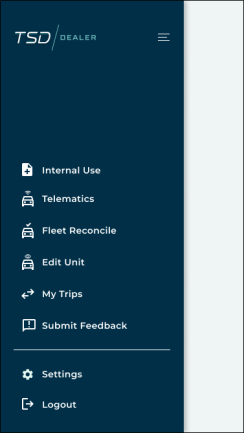
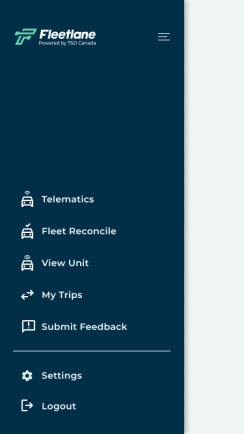
More mobile features, including:
|
|
|


Your Current Location

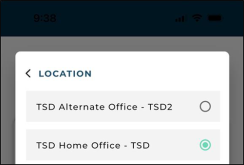
At the top of your 'Home' screen, you'll find your Current Location. To change your location, tap it, and choose another location.
Alerts
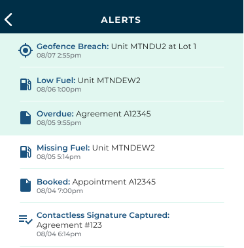
Tap the Alerts bell ( ) to view any alerts you have set up to be displayed on your Alerts Panel. You'll find the most recent alerts at the top, with unread alerts highlighted so they stand out.
© 2026 TSD Rental, LLC