|
HMA SRC offers a newly-designed TSD DEALER mobile application for both iOS and Android devices. Use the app to create a completely mobile and contactless experience and expedite everyday activities at your operation |
App Capabilities
The mobile app is compatible with iOS (Apple tablet or iPhone) and Android devices running at least the current OS version, or one version prior, along with certain mobile card readers. See "Mobile App Requirements & Devices" for more information.
| Scanning & photos |
|
| Agreement solutions |
|
| Inspections |
|
| Fleet management |
|
| Billing & credit card processing |
|
| Dashboard |
|
| Alerts |
|
| Settings |
|

Logging In
Do you use Single Sign-On (SSO) from your dealership portal? If you access HMA SRC from your website on a mobile device, you'll be prompted to open the app. See "Single Sign-On (SSO)" for more information.
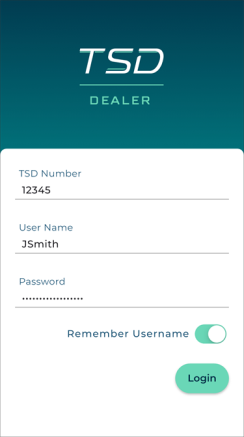
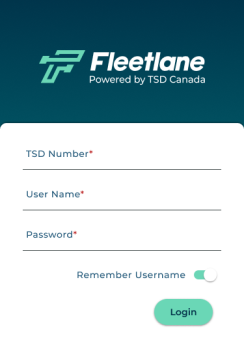
Log in directly to HMA SRC with your credentials. Your TSD Number is saved on the log-in screen between sessions, along with your User Name, if you tap the Remember Username  toggle.
- Go to your iOS or Android App Store and download the app.
- Fill in your HMA SRC credentials: TSD Number, User Name, and Password.
- Tap .
Single Sign-On (SSO)
Depending on your manufacturer, your location may use Single Sign-On (SSO) as a convenient and secure method of accessing HMA SRC through a corporate website or portal.
If you're using a mobile device, you'll be prompted to open the app. See "Single Sign-On (SSO)" for more information, including restrictions.
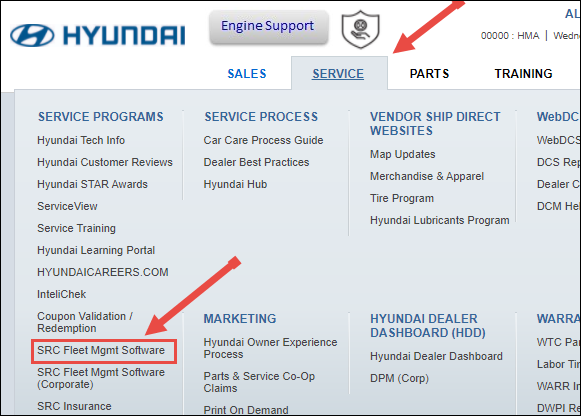
- Log into hyundaiusa.com using Google Chrome on your mobile device.
- Go to the Service tab, and click the SRC Fleet Mgmt Software link.
- If you're on a mobile device, you'll be prompted to open the app.