
|
Management setting ·
This setting is available for dealerships / locations that use TSD Payments provided by Stripe.
Use this setting to pair (i.e., register) Stripe card readers (Stripe Reader S700) with your location, so you can capture cards on the web by tapping or inserting them.
Devices follow the same hierarchy as your other credit card settings: set a device at the dealer level to share it with all locations, or set it at a location for that location only.
Add a new device:
- On the reader, generate a pairing code. (Power on, swipe from the left of the home screen, tap Settings, enter the Admin PIN, then tap Generate pairing code.)
- In the Management Hub, edit the TSD Pay Device Setup management setting.
- Click . A new row is added to the grid.
- Enter a Device Name for you to identify the device in the system, and the Pairing Code from the reader.
- (Optional.) Select Default Device for the device you want used by default.
- Click . The reader is registered, and its Device ID is filled in. After you save, the Pairing Code is read-only.
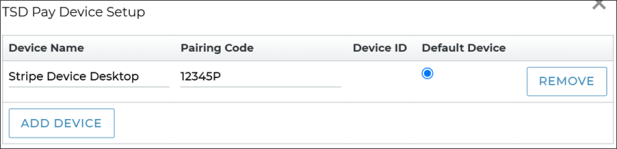
Manage devices:
- Rename a device. Edit the Device Name and click .
- Change the default device. If you use multiple devices, choose the Default Device option on the device you want, and click . The default applies to every employee at the location.
- Remove a device. Click on its row, and click .
Note: If you change a device at a location, that location gets its own device list and no longer inherits the dealer-level list. Resetting or removing a device at the dealer level also removes it from locations that renamed it.
© 2026 TSD Rental, LLC