
|
Web Scheduler Integration (BDCs)
Web Scheduler integrations are sold separately. Contact your TSD Sales Representative at sales@tsdweb.com for more information.
ATMS GEN2.0's Web Scheduler, or Business Development Center (BDC), integration optimizes your booking and fleet utilization through improved scheduling of appointments and enhanced communication with customers.
Once an appointment is made, it automatically pushes to ATMS GEN2.0 as a loaner appointment.
- Affinitiv
- AutoLoop Book™
- CDK (Fortellis) - See "Fortellis (CDK) Appointments Integration".
- Dealer-FX
- DealerLogix
- DealerSocket
- myKaarma
- RedCap
- Service Dynamics (ShopWatch)
- Tekion
- TimeHighway
- UDC Virtual Service Assistant (VSA)
- Xtime Service CRM™
Setup Requirements
- Contact TSD to get started. Initial configuration of the integration must be completed by TSD Support. Contact your TSD Sales Representative at sales@tsdweb.com for more information.
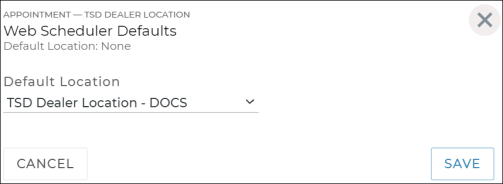
- Set up a Web Scheduler default location for your dealership.
- Go to the Management Hub (Admin > Management tab) and make sure the dealer check box (not the location) is selected under Admin in the left panel.
- Search for and edit the Web Scheduler Defaults setting.
- Select a Default Location from the list of pickup locations. This will be the location for which incoming appointments are accepted through your booking interface. This overrides any data received via your web scheduler feed.
- Save the setting.
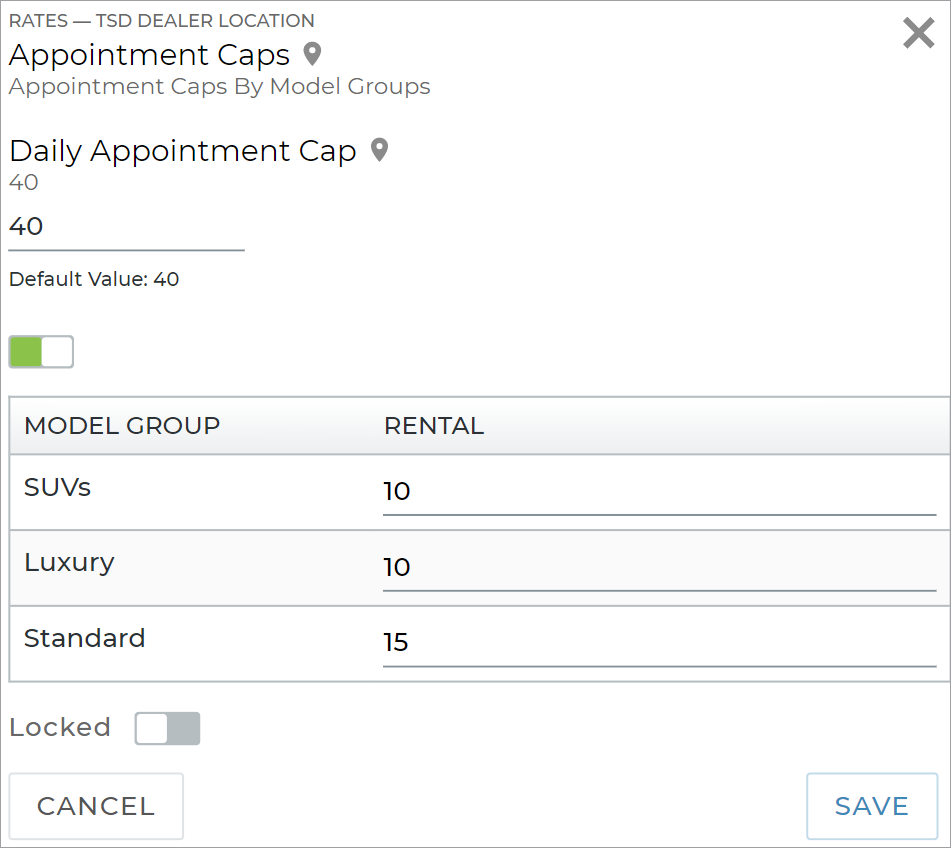
- Set up a Daily Appointment Cap. Your Daily Appointment Cap prevents overbooking by limiting the number of appointments that can be scheduled for pickup on any given day. Availability is determined based on this cap, so review it frequently based on your volume of business.
- Go to the Rates Hub (Admin > Rates tab) edit the Appointment Caps setting.
- Enter your daily appointment cap for all types of appointments. If you changed this cap to, say, 0, then you would have no availability on a daily basis. We recommend the cap not exceed your location's fleet size, to avoid the possibility of overbooking.
- If you have Rental appointments, options are available to set up separate caps for each Model Group. For example, you can cap the number of Rental appointments with SUVs at 10, and Sedans at 15.
- Click . If either this total cap or a Model-specific cap is met on a Checkout Date, an appointment cannot be booked with that unit for that date.
- (Optional, but recommended.) Set up Expedited Appointments. When Expedited Appointments is set up, ATMS GEN2.0 automatically texts or emails the customer a link to submit their information as soon as an appointment is booked through your web scheduler, so they have a faster checkout experience. See "Expedited Appointments" for more information.
- Go to the Management Hub (Admin > Management tab) and edit the Expedited Appointments setting. Turn it on and save.
- Edit the Auto Texting and Emails setting. Turn on automatic texting and/or automatic emailing for appointments. In the same setting, make sure automatic appointment notifications are turned on for each agreement type you want to use.
- (Optional.) Choose how far ahead reminders are sent for appointments booked for a future day: 24, 48, or 72 hours before the Checkout Date.
- (Optional, but recommended.) Set up alerts for booked appointments. We recommend you turn on alerts when appointments are booked, so when appointment is booked through the web scheduler interface and comes through ATMS GEN2.0, you can take action, if needed.
- Go to the Management Hub (Admin > Management tab) and edit the Alerts Hub setting.
- Toggle on “Alert Panel”, Email” and/or “Text Message” for the following alerts:
- Appointment Booked: Get an alert when an appointment is booked.
- Appointment Submitted Remotely: Get an alert when a customer submits information on an Expedited Appointment.
Hover to view the full-sized image.
Note: The customer does not receive a text if Text Allowed is off, or an email if Opt Out From Emails is selected. If your location is not set up for Expedited Appointments, the appointment is still created, and no text or email is sent.
Appointment Booking Process
ATMS GEN2.0 integration with web schedulers retrieves your latest availability information from the ATMS GEN2.0, at the time of booking. When a customer books an appointment on your booking platform, it flows into ATMS GEN2.0 an appointment.
- The customer books the appointment at a Pickup Location on your website. Like appointments manually created in ATMS GEN2.0, these appointments are subject to that location's Daily Appointment Cap.
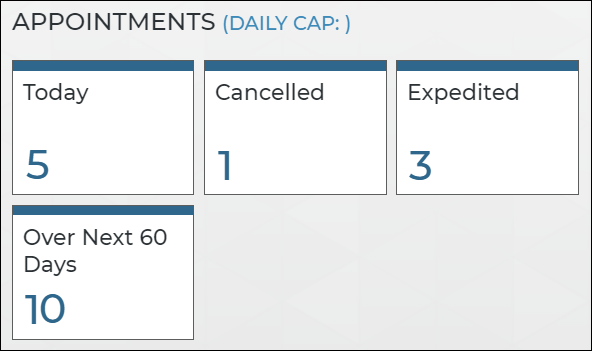
- The appointment is pushed to ATMS GEN2.0 as a new appointment. You can track these on the Appointment Operations dashboard.
- If your location is set up for Expedited Appointments, the customer automatically receives a text or email with a link to the appointment, so they can submit their information in advance. You do not need to take any action in ATMS GEN2.0.
- You can view and edit the appointment in ATMS GEN2.0, create an agreement from the appointment, and more.
Hover to view the full-sized image.
Key Appointment Characteristics:
- The Checkout Location of the appointment is determined by your Web Scheduler Defaults management setting and overrides the Pickup Location received via your web scheduler feed.
- The appointment contains a Source of Origin field to show the source of the appointment.
- The appointment contains a Trading Partner field to show the name of the web scheduler partner through which the appointment was booked.
- The service performs a match to use an existing ATMS GEN2.0 customer record: if the driver’s license number and driver’s license state/region and date of birth all match a customer record, the record information is used for the appointment. If not, the system tries to match the Last Name and one of the following: email address, phone number, or driver’s license number. (If all are provided, then all this information must match.) See "Customer Matching: How ATMS GEN2.0 Finds Customer Records for Appointments".
Customer Matching: How ATMS GEN2.0 Finds Customer Records for Appointments
When creating a new ATMS GEN2.0 appointment through a web scheduler, the service performs a match in order to use an existing ATMS GEN2.0 customer record. That way, duplicate customer records won't be created with every new appointment.
The following is required in order to match with an existing customer record:
- An exact match of the Driver's License Number + Driver's License State / Region + Date of Birth. If a match is found, no other matching is performed, and the existing customer record is used for the appointment.
- If the above match is not found, another match is performed, with the following rules:
- Last Name must match.
- One of the following must match: Email Address, Phone Number (digits only), or Driver's License Number.
If multiple fields of information are provided (e.g., email address, phone number, and a driver's license number), then all the provided information must match. (An empty field in ATMS GEN2.0 is not considered a mismatch.)
For example, if all search values are provided, and a customer with a matching Last Name, Email Address, and Phone Number is found but no License Number is set for the customer, they would still be a match. If all search values are provided and the Last Name, Email, and License Number match, but the Phone Number doesn't, then this is not considered a match. Instead, a new customer record and new appointment will be created, and the customer record will not merge with an existing one.
If multiple possible matches are found, we prioritize results by Email, Phone, Driver's License, and VersionStamp, and take the top match.
Best Practices
To ensure your web scheduler receives accurate availability information, make sure your fleet and agreement information in ATMS GEN2.0 is up-to-date by doing the following:
- Review appointment caps and adjust, as needed. Review your Appointment Caps, including Model-specific rental appointment caps, and adjust the cap based on your volume of business. Generally, if a cap is left too high, there is risk of overbooking. If left too low, it is likely that units will go unused.
- Track open agreements. Update Expected Return Dates and unit statuses, as necessary.
- Communicate with customers. Provide updates when service is complete.
- Don't wait to close agreements. Close agreements as soon as the unit is returned.
You can view your location's Daily Cap on your Appointment Operations dashboard. This cap is used when determining fleet availability on a given day.
© 2026 TSD Rental, LLC