
|
Check out our most recent features & improvements to the web and mobile versions of the product, from small enhancements to new integrations.
Version 1.6.10 (October 20, 2026)
Web Capture Credit Cards with a Stripe Card Reader
Interested in ATMS GEN2.0's integrated Credit Card Processing? Contact your TSD Sales Representative at sales@tsdweb.com to get started.
If your location uses TSD Payments integration provided by Stripe, you can now capture a customer's card in the web application with a Stripe Reader S700.
This reader is built for desktop use, so you can take a card at the counter without a mobile device or Bluetooth reader. Customers can tap their card (or insert it) on the reader, so you don't have to key in card numbers.
- Set up your reader in ATMS GEN2.0.
- On the reader, generate a pairing code, to be used to register the device in ATMS GEN2.0. Power on, swipe right from the left edge of the reader screen, tap Settings, and enter the admin passcode 07139. From here, you can tap Generate pairing code.
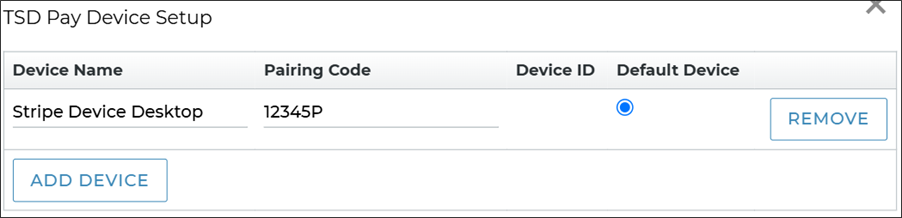
- In the new TSD Pay Device Setup management setting (Admin › Management tab), enter the pairing code obtained from the reader and name the device. You can set a default device, and devices set at the dealer level are shared with all of your locations.
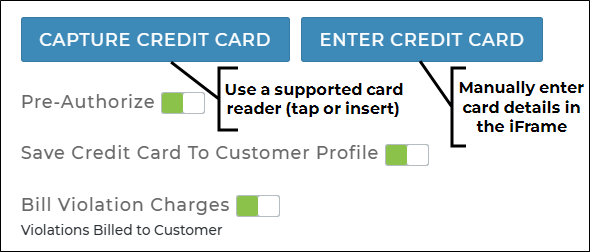
- Capture a card with your reader. On an agreement or appointment, click and ask the customer to tap or insert their card on the reader.
Hover to view the full-sized image.
Hover to view the full-sized image.
WebUber Rides Between Off-Site Pickup and Dropoff Sites
Uber Ride integration is sold separately. Contact your TSD Sales Representative at sales@tsdweb.com for more information.
We’ve expanded our Uber Ride integration options, so that you can allow rides between two off-site locations (such as taking a customer from home to a body shop), instead of every ride starting or ending at your dealership.
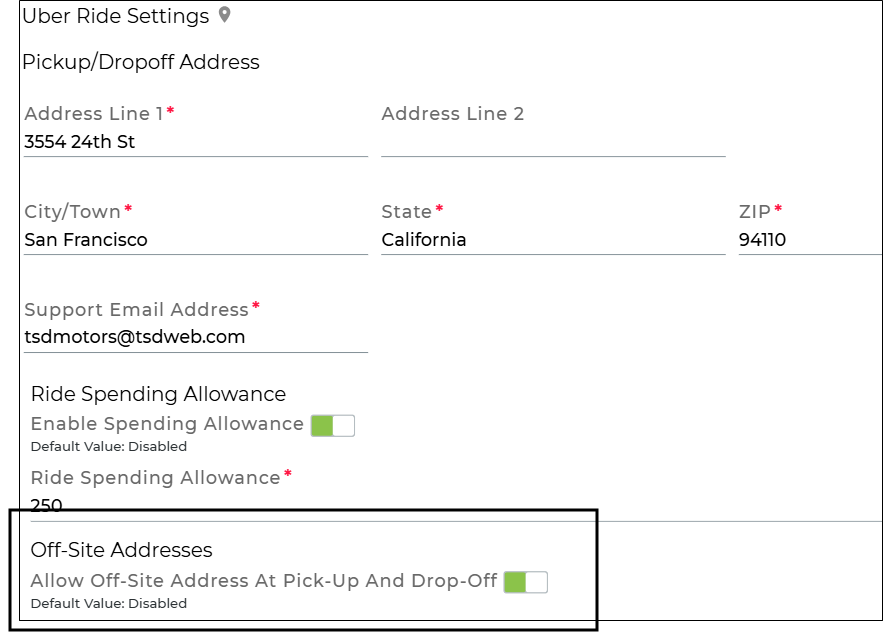
Allow rides between off-site locations within the Uber Ride Settings management setting, using the new Allow Off-Site Address At Pick-Up And Drop-Off toggle.
Hover to view the full-sized image.
Web Customer Geofence Breach Alerts
Telematics is sold separately. Contact your TSD Sales Representative at sales@tsdweb.com for more information.
If you use TSD's Telematics, you can use the existing Geofence Breach Alerts mangement setting to enable customer-facing alerts for exiting a specified service area geofence.
This gives you an automated way to notify all drivers on the agreement (via email and text) about out-of-area driving that may incur additional charges.
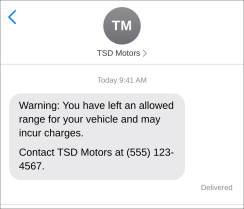
Every geofence exit event is logged to agreement history, and a blue banner will be displayed at the top of the agreement.
 Messages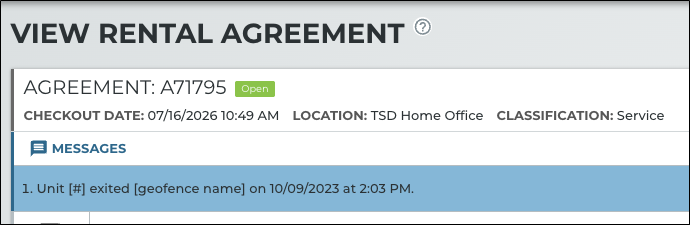
Hover to view the full-sized image.
Setup requirements for this feature:
- TSD must first turn on this feature. Contact TSD Support at support@tsdweb.com for assistance.
- Auto texting and emails must be turned on, so texts / emails can be sent to the customer. Texts/emails are sent regardless of whether the customer opts in on the agreement.
- Geofence breach types of alerts must be turned on within the Alerts Hub setting.
- New! Turn on customer-facing alerts for an out-of-area geofence within the Geofence Breach Alerts setting. The setting now contains a Customer-Facing Alerts section, in addition to the Employee-Facing Alerts section.

Hover to view the full-sized image.
WebUber Ride Availability After Address Changes
Uber Ride integration is sold separately. Contact your TSD Sales Representative at sales@tsdweb.com for more information.
Previously, editing an address after clicking kept the old ride options, which could book a ride with outdated or flipped addresses.
Now, any change to a pick-up or drop-off address field or toggle clears the ride options and you must request availability again to view ride and pricing options. (Ride type and pick-up date/time are kept.)
WebIncreased Character Limit of Customer Notes
The Customer Notes field on the customer record, which you can use to keep track of customer conversations and significant developments, now accepts up to 4,000 characters, instead of the previous 200-character limit.
WebRemoving Fees on Closed Agreements
Previously, fees added while an agreement was open couldn't be removed once the agreement was closed.
Now, when viewing a closed agreement, all fees show the delete icon, including fees added before close. Charges and taxes recalculate on removal, and the printed invoice reflects the change.
Web "Dealer Fee" Renamed to "Credit Card Fee"
To avoid confusion, we've updated the "Dealer Fee" label on tolling reports, so it now reads "Credit Card Fee." This is the amount charged by TSD for credit card processing fees, known as pass-through fees.
This is applicable to the Violations Summary Report and the Toll Success section on the Performance Dashboard.
WebLabels Updated on Unit Record: "Agreement Days" and "Utilization"
We've updated the "Lifetime Agr. Days" field on the unit record to "Agreement Days", and the "Lifetime Utilization" to "Utilization". The calculations are unchanged: both fields still show the unit's totals since it joined your fleet.
Web Exchange Agreements Show Each Unit's Actual Dates
When you exchange a unit on an agreement, each unit's agreement form now shows only the dates and times that unit was on the agreement, instead of the full agreement dates.
Example: You open an agreement with an expected return in 10 days, exchange Unit A for Unit B on day 7, and close the agreement on day 8. The Agreement Files section contains these files:
- Unit A: Original Signed Agreement for day 1 to day 10, and Return Agreement for day 1 to day 7
- Unit B: Original Signed Agreement for day 7 to day 10, and Return Agreement for day 7 to day 8.
A few notes:
- Forms that were already signed do not change.
- When you print an unsigned agreement or collect a signature, you choose which unit's form to use. The current unit is selected by default.
- When you close the agreement, the customer receives one PDF with every unit's form, starting with the original unit.
Web & Mobile Inspection Photos Keep Original Orientation
Previously, a photo taken with the phone turned sideways during an inspection showed as landscape in the preview but opened in portrait mode, squeezed.
Now, inspection photos keep the orientation and aspect ratio they were taken in.
Version 1.6.9 (September 16, 2026)
Web & Mobile Insurance Verification Integration with Axle: Policy Checks
Insurance verification integration is sold separately. Contact your TSD Sales Representative at sales@tsdweb.com for more information.
When your customers verify insurance through Axle, you can see policy pass / fail status at a glance on the appointment and agreement, so you know whether the policy needs a closer look.
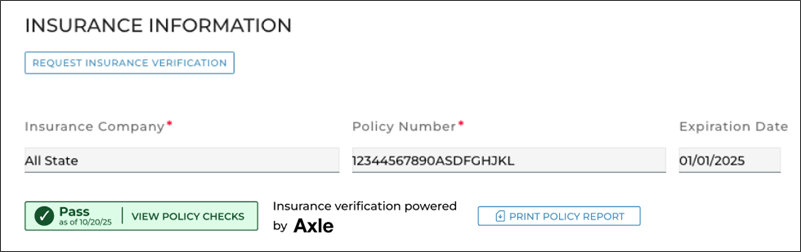
Hover to view the full-sized image.
Click VIEW POLICY CHECKS to open Axle's iframe for check-by-check detail (e.g., valid expiration date, active policy, comprehensive / collision coverage) to pinpoint exactly what needs attention. Each tap re-pings Axle and refreshes the result, so you are always working from current data.
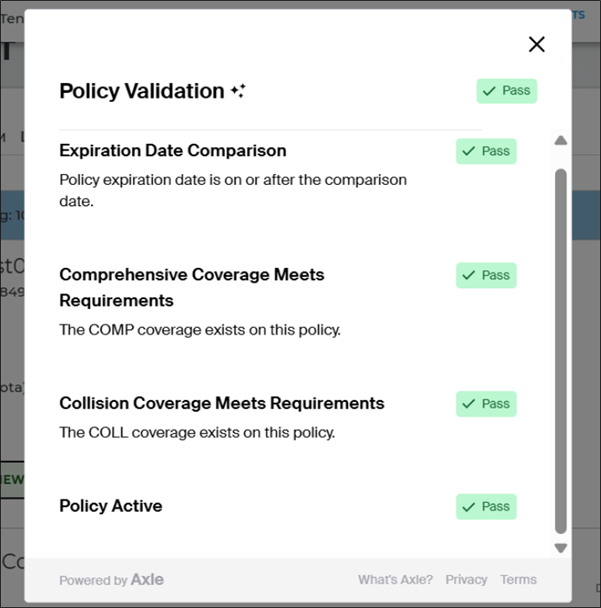
Passed policy checks
Hover to view the full-sized image.
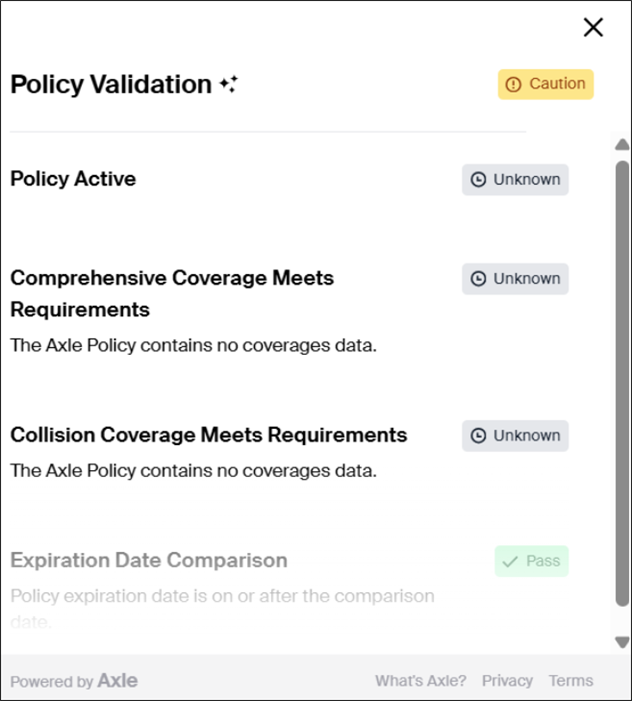
Failed policy checks
Hover to view the full-sized image.
Version 1.6.8 (August 18, 2026)
Web Canadian French (fr-CA) Support
We now support Canadian French (fr-CA) alongside English throughout ATMS GEN2.0 , so your Canadian locations can serve French-speaking customers in their preferred language.
This applies to accounts with Country Code set to CA (Canada).
- Language Preference management setting. Sets the display language for the application: English or French (CA). Available for accounts with Country Code CA.
- Employee / User Account Language Preference. The individual employee's personal language preference, which takes priority over the above setting, can be set on the employee's record and the User Account page. Available for accounts with Country Code CA.
- Login page. The login screen contains a language toggle between English and French. It remembers the last language used on that browser.
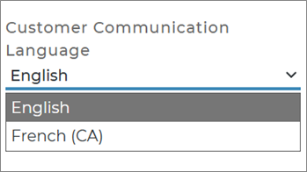
- Customer communication language preference. A Customer Communication Language field is available on the customer's profile (and at appointment/agreement) so you can record whether a customer prefers English or French (CA) for customer messaging, including appointment confirmation messages, Contactless Signature emails and texts (including the signable agreement page itself), and agreement forms (with dates, times, and currency formatted for the customer's region).
- Regional terminology. Labels that referenced 'Miles', now read 'Odometer', or, where your location's Odometer Unit setting is set to Kilometers, 'Kilometers'.
- The "Edit Turnback Miles" role permission: renamed to "Edit Turnback Odometer"
- Mileage Charge rates setting: renamed to Per Mile Rate or Per Kilometer Rate accordingly.
- Dealer Turnback Miles and Turnback Mileage Notification Lead Time, management settings: renamed to Dealer Turnback Odometer and Turnback Odometer Notification Lead Time, respectively.
- Turnback Miles / Kilometers on a unit record, Mileage Charges / Rates within rates settings, and Miles / Kilometers Per Agreement on the Dashboard will be based on the Odometer Unit setting.
Hover to view the full-sized image.
Examples include:
Web Bulk Print QR Codes From Fleet Hub
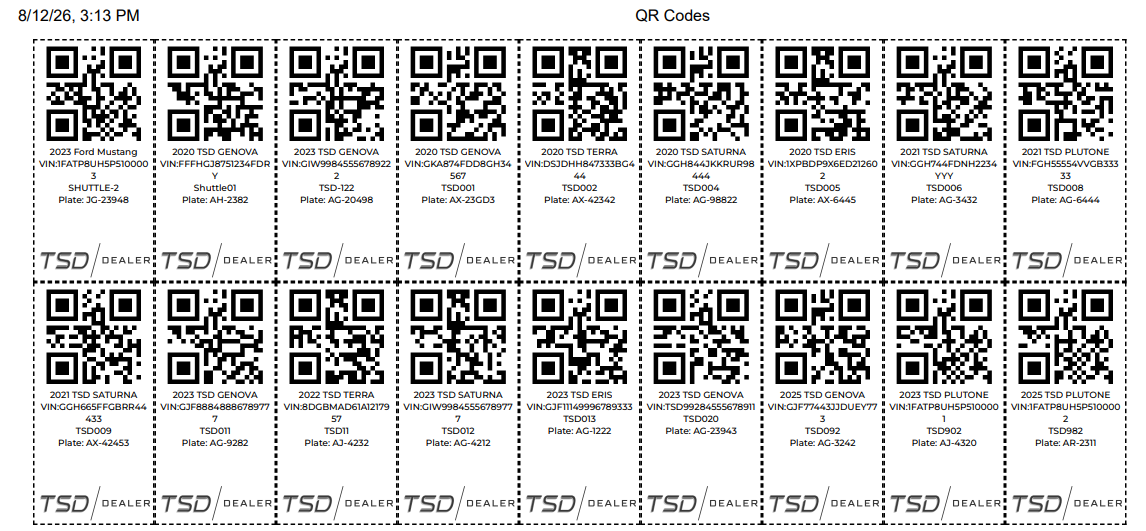
We've made printing unit QR codes even easier, especially for large fleets.
Instead of printing for each unit individually, you can now generate a single print-ready page containing every active unit's QR code at once via the Bulk Print QR Codes button on the Fleet Hub.
Hover to view the full-sized image.
Web Text Consent with Web Schedulers Now Covers the Full Appointment
If your location uses auto texting with a web scheduler / BDC appointment integration, a customer booking through a BDC web scheduler will now receive all texts associated with that appointment, not just the initial single confirmation text.
When the appointment converts into an agreement, text consent resets so the customer can opt in for the agreement itself.
Web Lifetime Agreement Days Added to View Unit
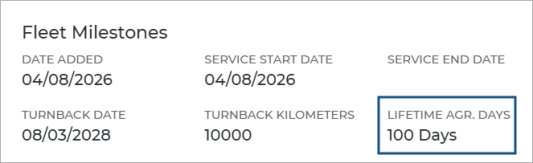
The View Unit screen now shows Lifetime Agreement Days (labeled Lifetime Agr. Days), giving you a quick way to see how many days a unit has actually been out on agreement over its lifetime.
Web Behind-The-Scenes Measures to Protect Your Customer Data
To help protect your customers' personally identifiable information and reduce how long sensitive data is stored, ATMS GEN2.0 now automatically clears a customer's driver's license number and date of birth once that customer's records are no longer tied to any recent or open activity.
- Once cleared, the DL# and DOB fields show as blank everywhere they normally appear, including the customer record, driver record, agreement views, and appointment views. All other customer information, including name, contact details, and agreement history, is retained.
- Open agreements are never affected by this process.
- If you start a new appointment or agreement for a customer whose information has been cleared, their other details carry over as usual. You'll just need to re-enter their driver's license number and date of birth.
Version 1.6.7 (July 21, 2026)
WebAppointment Integration for CDK DMS
ATMS GEN2.0 now integrates with Fortellis, CDK Global's commerce exchange platform, to bring service appointments from your CDK Drive DMS into ATMS GEN2.0 automatically. New and updated appointments will be retrieved from ATMS GEN2.0 on a recurring schedule, where you can monitor them on your Dashboard, open them into agreements, and more.
This integration is sold separately. To get started, contact the TSD Sales Team by emailing sales@tsdweb.com.
WebGKL Vehicle Group Reporting
ATMS GEN2.0 now supports tracking for BMW’s GKL (Große Klasse or Grand Class) tier of models separately from the fleet as a whole.
- GKL KPIs on the Performance Dashboard. The Fleet Performance Dashboard contains two buttons: All Units (shown by default) and GKL Units (a dashboard limited to GKL vehicles), showing utilization, LOU, miles per agreement, average age, and a count of active GKL units.
- Reporting on GKL units. A new GKL KPI Report is available to view fleet and agreement key performance indicators (KPIs) for your fleet, with a GKL column to indicate whether the unit is a GKL vehicle. Use this report to compare metrics like utilization across your full fleet versus just your GKL vehicles.
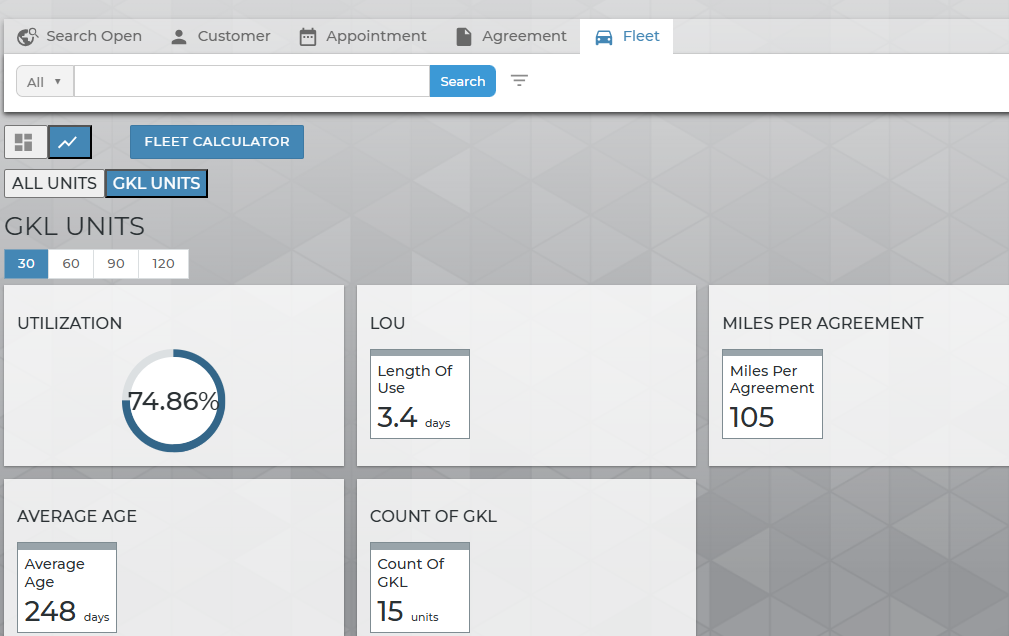
Hover to view the full-sized image.
Web & MobileContactless Signature Message Updated
We've updated the text and email message sent for Contactless Signatures so it's clearer and more user-friendly for your customers:
- Subject line (for emails): "Your Agreement A### From (Location Name) is Ready for Signature"
- New message: "Hi (First) (Last), (Location Name) sent you a Vehicle Use Agreement to review and sign, click here to complete."
Version 1.6.6 (June 16, 2026)
WebRequest Return From the Customer
When a vehicle is overdue or needed for another customer, you can now notify the customer directly from the agreement without leaving ATMS GEN2.0.
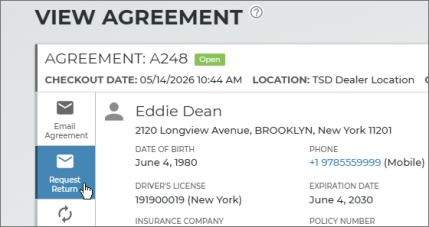
A new Request Return button has been added to the side panel of the agreement to send a text or email to the customer, depending on what contact method(s) the customer opted to receive on the agreement.
- Text message: Sends a standardized text message: "[Dealership Name] requests that you return to the dealership with your [agreement type] vehicle."
- Email: Sends an email message: "Hello [Customer Name], [Dealership Name] requests that you return to the dealership with your [agreement type] vehicle." You can add custom text to the email using the Request Return Email Message management setting.
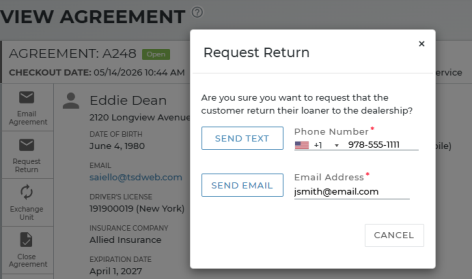
Setups:
- Permissions. A new Allow Request Return role permission is available to manage access to this function. At the time of release, High roles will have this permission, by default. Adjust for other roles as needed.
- Add custom text to the email template. You can use the new Request Return Email Message management setting to customize the email message. If no custom message has been configured, the email is still sent without one.
Web New Custom Report Column Options
New columns are now available when building custom reports for agreements using ATMS GEN2.0's Report Builder:
- Inspection at Open and Inspection at Close. Both columns display Y (yes) or N (no) to indicate whether an inspection was completed at that stage of the agreement. Use these fields to audit agreements for inspection compliance across fleet.
- Time to Open and Time to Close. The time it took an employee to open and to close the agreement, respectively (e.g., 3 min. 11 sec). Use these columns to measure and compare agreement processing times across your location.
- Insurance Notes. The insurance note from the agreement.
Version 1.6.5 (May 19, 2026)
Web Appointment Calendar Now Available in the Appointment Hub
The Appointment Hub includes brand new  CALENDAR view, giving you a visual way to see and plan for upcoming appointments, spot scheduling gaps, anticipate busy periods, and make sure your fleet is ready to meet demand.
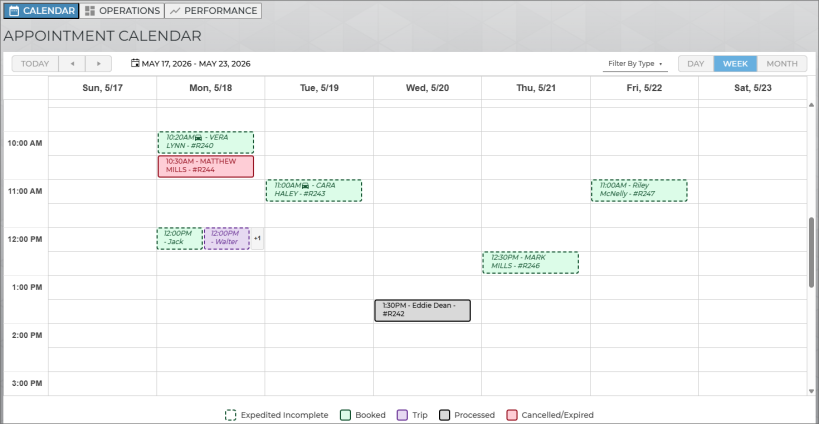
The Calendar At-a-Glance: What Am I Looking At?
Each appointment block shows the appointment checkout time, a car icon ( ) if a unit is assigned, the customer name, and appointment number.
- Hover over an appointment to view more details, including the booked Model Group, source of the booking, and expected Return Date and time.
- Click any appointment on the calendar to view the appointment in ATMS GEN2.0 (for example, to edit information, adjust the date range, or cancel it entirely). For appointments already processed into an agreement, clicking it will open the View Agreement screen.
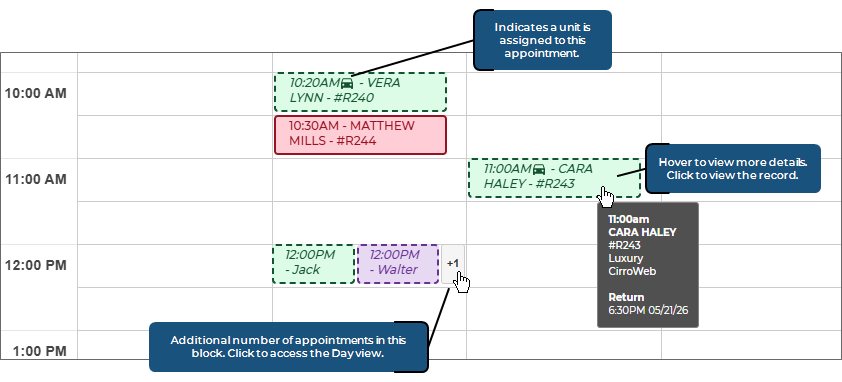
Appointment details are easy to distinguish at a glance:
- Car icon (
 ) indicates a unit is assigned
 - Green = Booked appointment
- Purple = Trip (Delivery or Collection appointment)
- Red = Cancelled or Expired appointment
- Gray: Processed appointment (that is, an appointment that's already been opened into an agreement)
- Dotted border = An Expedited Appointment still requiring submission by the customer.
Calendar Dates: View by Week, Day, or Month
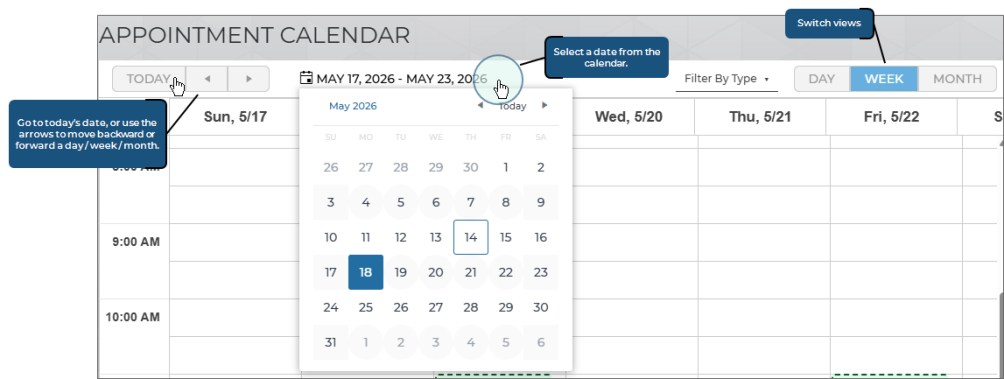
The date range is displayed in the top-left corner of the calendar (for example: June 1, 2026 – June 7, 2026, for a weekly view). The left margin shows time increments (30-minutes, depending on your view). So, an appointment for 10:45 displays in the 10:30 – 11:00 block, not its own block.
You have several ways to change your view:
- Switch between day, week, and month views. You can switch between views using the buttons in the calendar header:
- (default): A 7-day view, Sunday through Saturday.
- : A single day in detail.
- : A full month at a glance.
- Jump to a specific date. Click the date range to open a date picker and jump to a specific date. From there, you can click Today to jump back to the current date.
Use the Previous and Next arrows to move backward or forward by one day, week, or month, depending on your current view.
Filter by Appointment Type
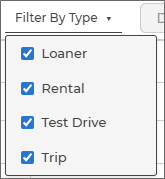
By default, the calendar shows all types of appointments. You can filter the calendar to show certain types of appointments using the Filter by Type list in the top right corner.
WebEasy Sign Toggles and Text Improvements
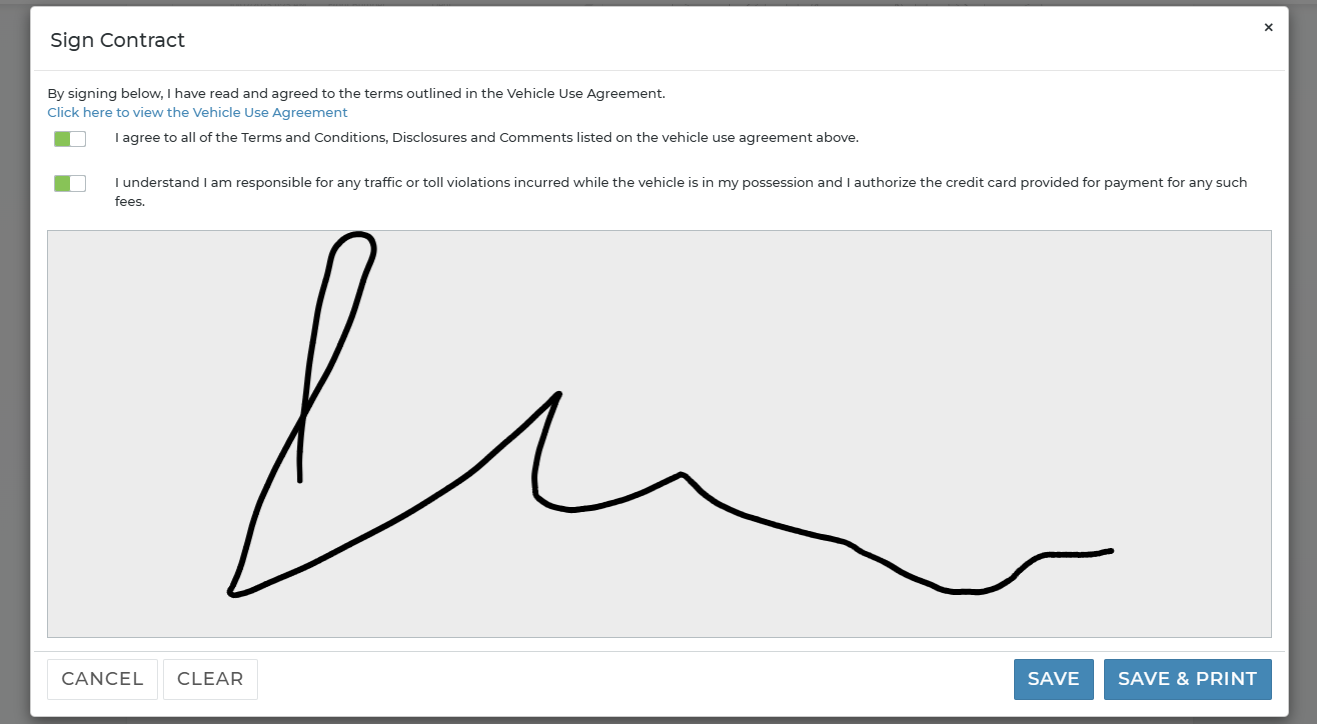
We made minor improvements to the Easy Sign dialog, specifically moving the Vehicle Use Agreement text and link above the terms and conditions toggles, and rewording this text to: "By signing below, I have read and agreed to the terms outlined in the Vehicle Use Agreement. Click here to view the Vehicle Use Agreement."
The toggle for terms and conditions now states: "I agree to all of the Terms and Conditions, Disclosures, and Comments listed on the dealership agreement above."
Hover to view the full-sized image.
WebContact TSD to Manage Agreement Types
As you know, ATMS GEN2.0 accommodates many types of services and programs, known as Appointment / Agreement Types, that your operation may support (for example, a rental or test drive program).
Going forward, you can contact TSD Support at support@tsdweb.com in order to make changes to your appointment / agreement types or rate charging for those types.
Version 1.6.4 (April 21, 2026)
WebUber Ride Integration: Improved Criteria for "Needs Attention" Status
Interested in Uber Ride integration to provide rides from your location? Contact your TSD Sales Representative at sales@tsdweb.com for more information.
An age cap has been added to the “Needs Attention” status for Uber Ride agreements to prevent outdated items from accumulating in the Uber Hub.
Only Uber rides marked Needs Attention within 24 hours of the ride's Checkout Date/Time will appear, so you will see today’s and yesterday’s rides only. Agreements older than one day will automatically be filtered out.
WebInsurance Verification with Canopy Connect: Print Declaration Page
Interested in Insurance Verification integration? Contact your TSD Sales Representative at sales@tsdweb.com for more information.
We're enhancing our Insurance Verification integration with Canopy Connect to support viewing and printing the Declaration Page once insurance verification is complete.
Just click on the customer record, appointment, or agreement.

WebReynolds and Reynolds Integration: Pop-Up Message for Successful RO Searches
Interested in Reynolds and Reynolds integration to have your DMS appointments and ROs feed into ATMS GEN2.0? Contact your TSD Sales Representative at sales@tsdweb.com for more information.
We're making it easier to see when an RO is successfully added to an agreement through the RO Search feature, so you don't have to scroll down to the RO Number field.
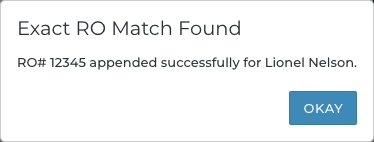
If a single RO match is found, an "Exact RO Match Found" message is displayed: "RO# [Number] appended successfully for [RO Customer Name]."
WebSupport for Kilometers for Odometer
Use the new Odometer Input management setting to set the default odometer unit of measurement for new units, going forward: Miles or Kilometers. (You can always change this when adding new units.)
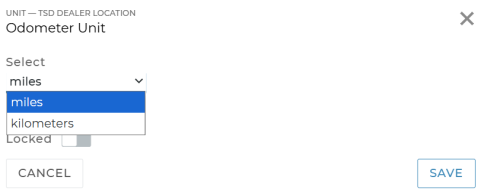
Additionally, the labels have been updated from "Miles" to "Odometer" (to account for either unit of measurement) throughout the agreement process (e.g., Miles Out to Odometer Out, Miles in to Odometer In, etc.)
If using Telematics integration, odometer data provided by telematics is provided in the appropriate unit of measurement.
Version 1.6.3 (March 17, 2026)
Web Rental-Specific Credit Card Pre-Authorizations
If your location uses rentals and credit card processing, we're offering more options when it comes to pre-authorizations on rental agreements, so you can have more flexibility for your rental program when it comes to reserving funds for future payment.
With rental pre-authorizations, you'll set up the default amounts in your management settings (e.g., a flat $50, or an amount over the cost), but you can change the amount right on the agreement itself, at open or viewing an open agreement.
How to Set Up Rental Pre-Authorizations
- In the Management Hub, edit the setting: Credit Card Capture Required at Open and Pre-Authorization Settings.
- In the Rental Pre-Authorizations section, toggle on Enable Rental Pre-Authorizations
 .
. - Select how you want the pre-authorization to default on your rental agreements:
- Flat Amount: A flat amount, regardless of the cost of the rental.
- Amount Over Cost: A flat amount over the cost of the rental (minus taxes).
In both cases, you'll be able to change this amount on the actual Rental agreement before taking the pre-authorization.
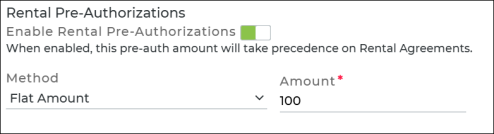
Note: Note that this new setting for rentals is currently only applicable when opening a new agreement, or viewing / editing an open agreement; it is not yet applicable at close agreement.
Take a Pre-Authorization on a Rental Agreement
The process of taking a pre-authorization is still the same. You'll toggle on Pre-Authorize and then capture a credit card.

You'll notice your configured pre-authorization amounts for agreement charges and for tolls are displayed for easy reference.
As long as the pre-authorization hasn't already been taken against the captured credit card, you can click to enter a custom amount (for example, to change it from $100 to $120, as shown below).
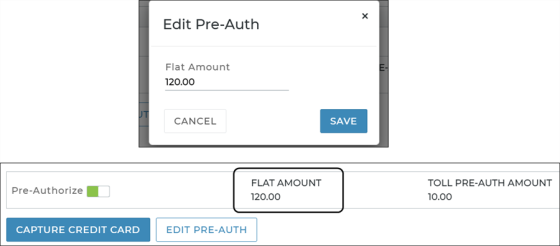
After the pre-authorization is taken, the total amount pre-authorized is shown, for reference.
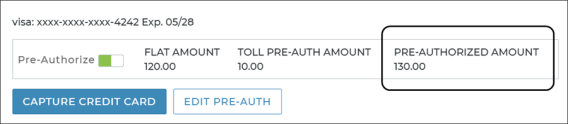
Note that if a new credit card is captured, the present pre-authorization will be automatically released and a new pre-authorization will be taken against the new card for the same amount pre-authorized on the original card.
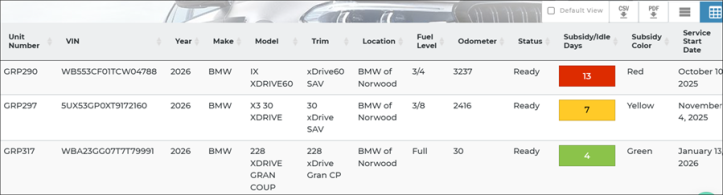
Web Subsidy Eligibility Color Coding in Exported Fleet Hub List
ATMS GEN2.0 uses a color-coding system to support BMW's Subsidy Program integration to align with subsidy eligibility guidelines. See "BMW Subsidy Program Integration" for more information.
We're making sure color-coding on the Fleet Hub list of units is also maintained in the exported PDF and CSV by adding a new Subsidy Color column that will display Green, Yellow, or Red, as applicable.
Version 1.6.2 (February 17, 2026)
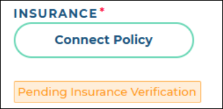
Web Insurance Verification with Canopy: Pending Insurance Verification Message on Expedited Appointment
Insurance verification integration is sold separately. Contact your TSD Sales Representative at sales@tsdweb.com for more information.
For Insurance Verification integration with Canopy Connect, we're applying the message that displays on an agreement when insurance verification has been requested () to the expedited appointment, after a customer clicks Connect Policy.
The message will be displayed on the expedited appointment after the customer returns to the appointment after submitting information, until their insurance details load on the form.
Version 1.6.1 (January 20, 2026)
The latest version of the application contains minor fixes and performance improvements to improve your experience.We're also working on upcoming integrations, to be announced soon. Stay tuned!
© 2026 TSD Rental, LLC