
|
Key Reader Integration
With ATMS GEN2.0''s Key Reader integration, you can check in and out vehicles to save you and your customers' time. The service provides ATMS GEN2.0 with the latest physical Key Read from the KeyPool, all from your computer or mobile device.
Retrieve a unit's fuel / battery and mileage with a Key Reader in the following areas of the web application or mobile app:
- adding a unit to the fleet using a key reader
- editing a unit record
- removing a unit from your fleet and returning a unit to the fleet
- assigning a unit during the agreement or exchange process
- closing or close pending an agreement
Setup Requirements
Note: Before performing these steps, verify that the KeyReader device has been configured to “write to the keypool.”
Before the Key Reader can be fully integrated with the application, all locations at which KAI Key Reader is to be used with ATMS GEN2.0 must be configured to interpret the information provided by the Key Reader.
- Verify that your KeyReader is connected to the KeyPool. The Key Reader at your desk should already be connected to the KeyPool. To verify this, perform a KeyRead with any key using the Key Reader at your desk. Then, open ISPA Next on any PC in your dealership. The KeyRead should show up in the KeyPool. If not, please contact your ISPI Admin.
- Turn on Key Reader integration. Use the BMW Key Reader Configuration management setting to turn on the integration. Select the KAI WebService option from the BMW Key Reader list. The DISTRIBUTION PRODUCT NUMBER and OUTLET NUMBER will have been filled in for you.
-
Turns on BMW Key Reader Integration with either the KAI WebService, which uses the unit's VIN to retrieve data, or the legacy Generic Key Reader Interface service (GKI), which requires Internet Explorer and uses a .BIN file to retrieve data.
-
Note: If KAI WebService is selected, the Allow Add Vehicle Manually management setting must also be turned on in order to add new units with the KAI Key Reader.
-
If KAI WebService is selected:
- the Distribution Product Number and Outlet Number fields are required.
- a Prioritize Key Reader Data indicator (
 ) is available to have the system use KAI key reader data for the unit's fuel and mileage on agreements, instead of data retrieved from a Connected Car telematics device (for locations with Connected Car Integration). In this case, if data cannot be found from the KAI WebService, the application will use data from the unit's Connected Car device, if applicable.
 - Select the KAI WebService option from the BMW Key Reader list. The DISTRIBUTION PRODUCT NUMBER and OUTLET NUMBER will have been filled in for you.
- If you want ATMS GEN2.0 to use the KAI Key Reader as the default provider of fuel and mileage data on agreements (as opposed to a Connected Car telematics device, for locations with Connected Car Integration), make sure the Prioritize Key Reader Data indicator () is turned on. ATMS GEN2.0 will only use data from the unit's Connected Car device if the KAI Key Reader fails to retrieve fuel and mileage data on agreements.
- If you want to lock the setting at a higher level (such as the dealer level), so it cannot be edited by a lower level (such as a dealer's locations), select the Locked toggle.
- Click .
- Find and edit (
 ) the management setting: Allow Add Vehicle Manually. Make sure it is turned on (
 ), as it is required to add new units with the KAI Key Reader. Click .
Using a Key Reader in ATMS GEN2.0
Note: ATMS GEN2.0 supports the KAI Key Reader service, which provides ATMS GEN2.0 with the latest physical Key Read for a specified VIN. While Key Reads are stored in the Key Pool for seven (7) days, ATMS GEN2.0 will only consider key reads within the last hour as valid. If a key read older than an hour, it will not be displayed and you have to read the key again.
When Key Reader integration is in use, the unit's current mileage and fuel is displayed when you add or edit a unit, assign a unit on an agreement or exchange, process a returning unit on an exchange, close an agreement, or close pend an agreement.
 Add a unit by Key Reader
Navigation from your Home screen:
 > New Unit by Key Reader
Note: KAI Key Reader: The ability to add a unit by Key Reader is only available for locations with Key Reader integration that can add units manually (Allow Add Vehicle Manually management setting is turned on).
- On the New Unit screen, enter a unique Unit Number, then type a VIN and press Tab to fill in some unit information, based on the VIN.1
- After you enter a VIN and leave the field, Key Reader data is retrieved for the unit's VIN. If key data is read successfully, a message is displayed with the current date and time as the Read Date. Click to return to the unit record with the mileage and fuel (if available) automatically filled in.2
- Enter any remaining required information (*). Click , and do the same for local information.
- Enter required information about the unit's location and dates (*). Click .
- Click .
- For locations with rates set up, if a new unit's model is not yet associated with a Model Group, a brief message is displayed in the bottom-left corner of the screen: "You have X model(s) pending Model Group association." See "Model Groups (Rates setting)" for more information about associating models with Model Groups.

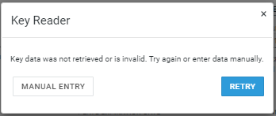
If key data was not retrieved or is invalid, a message is displayed with the option to or (to return to the New Unit screen and enter a new VIN).
Note: The unit's Status is set to Ready and cannot be edited until the new unit is successfully added to the fleet.
Edit a unit record with Key Reader (web and mobile)
Navigation from your Home screen:
 > .
> .
- Find and view the unit record.
- On the Edit Unit screen, click to retrieve the latest mileage and fuel (if available), provided by the KAI Key Reader service. If key data was not retrieved or is invalid, a message is displayed with the option to or manually enter the fuel and mileage ().
- Make your changes and click .
Remove a unit from the fleet (and return a unit to the fleet) with a Key Reader
Navigation from your Home screen:
> > Remove From Fleet button
Note: Using the mobile app? See "Remove a unit from the fleet" in the Mobile Fleet Management topic.
- Find and view the unit record.
- Click Remove From Fleet on the side panel of the record. If the unit has already been removed from the fleet, click Return to Fleet to return the removed unit to the fleet.
- On the Edit Unit screen, the latest mileage and fuel (if available) is provided by the KAI Key Reader service. If key data was not retrieved or is invalid, a message is displayed with the option to or manually enter the fuel and mileage (). If you choose to manually enter the data, a button becomes available under the fields.
- Verify the required information, marked with red asterisks (*), and click .
Assign a unit with a Key Reader (web and mobile)
- When assigning a unit on an agreement or exchange:
- Click to pull up a list of available units, sorted by Subsidy / Idle Days so you can prioritize usage.
- Type the full Unit Number, or enter part of the Unit Number and/or select a Model to filter and select from the list. You can sort the grid of units, as necessary.
- The latest mileage and fuel (if available) is provided by the KAI Key Reader service. If key data was not retrieved or is invalid, a message is displayed with the option to or manually enter the fuel and mileage (). If you choose to manually enter the data, a button becomes available under the fields. See "Key Reader Integration" for more information.
- Continue with the open agreement or exchange process, as applicable.
If you type the Unit Number of a unit that is assigned to another agreement at your location, you may be able to perform a Quick Return for that agreement, See "Perform a Quick Return" for more information.
Note: If your location also uses TSD Telematics, data from the KAI Key Reader is used on the agreement instead of the Connected Car telematics device, as long as the Prioritize Key Reader Data option is selected in your BMW Key Reader Management setting in Admin Setup.
Troubleshooting the KAI Key Reader
If you receive the error message: "Key data was not retrieved or is invalid", do the following:
- Verify that you are using the correct VIN.
- Make sure that your KeyRead is not outdated. Remember that ATMS GEN2.0 only accepts KeyReads which are less than 1 hour old.
- Verify that you can see the KeyRead in ISPA Next. If the KeyRead does not show up in ISPA Next, please contact your ISPI Admin.
- If the KeyRead shows in ISPA Next, but not in ATMS GEN2.0, please contact your TSD support team at support@tsdweb.com.
© 2026 TSD Rental, LLC